How to draw an ArchiMate diagram
Six steps from an empty canvas to a view someone can use: pick the question, list the elements, place them by layer, connect them with allowed relationships, check, and share.
9 min readArchiMate 3.26 of 7
The short answer
- Start with one question for one reader, then pick the viewpoint that fits it. A view that answers no question keeps growing until nobody reads it.
- List the elements by layer before you draw, and leave out what does not help answer the question. Leaving an element out of a view does not remove it from the model.
- Place business at the top, application in the middle and technology at the bottom, then connect them only with relationships the ArchiMate 3.2 table allows.
- Check every line for the most specific relationship and the right direction, then ask someone to answer the question from the view alone.
01Step 1. Pick the question and the viewpoint#
An ArchiMate model can hold hundreds of elements. Nobody draws them all at once. You draw a view: one diagram that shows a part of the model. A good view answers one question for one kind of reader. So before you open a tool, write the question down.
This article follows one example from start to finish: the small clinic from the application layer article. Patients book visits on a web page, and a receptionist books visits for patients who phone. The person who runs the clinic asks: "Which systems does booking a visit depend on, and what stops if the database server fails?"
Next, pick a viewpoint. A viewpoint is the rule for a kind of view: who it is for and which element types it may show. ArchiMate 3.2 defines a set of them. Four cover most first diagrams:
| Element | Notation | What it means |
|---|---|---|
| Layered | business, application and technology together | How work at the top depends on systems and machines below. Our question needs this one, because it crosses all three layers. |
| Application cooperation | components and what moves between them | Which systems talk to each other. For example, how Booking system and Medical records share patient data. |
| Application usage | business processes and the services they use | Which business work uses which software. For example, which clinic processes use Appointment booking. |
| Technology | nodes, system software and networks | What runs where. For example, which server the database runs on. |
The viewpoints article lists the rest and how to choose. In Archyno you pick the viewpoint when you create an ArchiMate diagram. The palette then lists only the element types that viewpoint allows, with a Show all link for the rest. Layered allows every type.
02Step 2. List the elements before you draw#
Write a plain list first. For each element, write its name and its type, grouped by layer. For the clinic's question, the list is short:
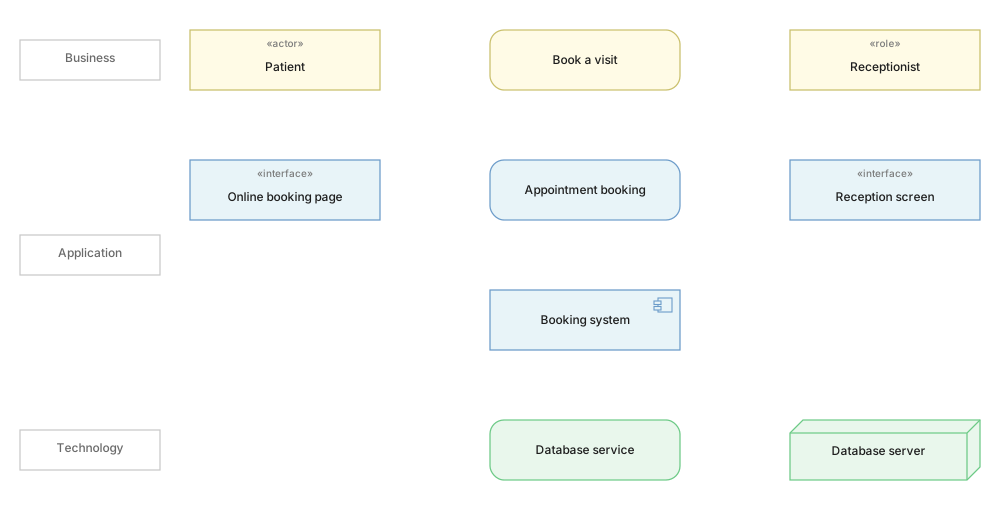
- Business: Patient (business actor), Receptionist (business role), Book a visit (business process).
- Application: Online booking page and Reception screen (application interfaces), Appointment booking (application service), Booking system (application component).
- Technology: Database service (technology service), Database server (node).
Leave things out on purpose. The clinic's application layer also has Calendar management, Confirm booking and Appointment data. They are real, but they do not help answer this question. They stay in the model and out of this view. Another view, for another question, can show them.
Name each element the way its readers do. Give behaviour a verb phrase, such as Book a visit. Give structure a noun, such as Booking system. Name a service by what its user gets: Appointment booking, not "Booking API".
03Step 3. Place the elements by layer#
Put the business layer at the top, the application layer in the middle and the technology layer at the bottom. The specification does not require this layout, but ArchiMate readers expect it. It also makes most lines point the same way, because lower layers serve the layers above them.
Inside a layer, put each element close to the ones it will connect to. Appointment booking goes right under Book a visit, because it will serve it. Booking system goes right under the service it makes real. Each interface goes under the person who uses it. Then most lines will be short and straight, and no line has to cross a box.
Choose each shape from the element's type, not from taste. Readers use the shape to tell an active element from behaviour or data. Many tools also colour the layers: yellow for business, blue for application, green for technology. The specification does not require colours, but readers know these, and Archyno's editor uses them. The figure at the top of this article is the view after this step.
04Step 4. Connect with allowed relationships#
Now draw the lines. ArchiMate 3.2 lists, in Appendix B of the specification, which relationships may join which two element types. You do not need to learn the table. In a layered view, three relationships do most of the work:
| Element | Notation | What it means |
|---|---|---|
| Assignment | Who performs the behaviour, or which interface offers a service. Patient and Receptionist are assigned to Book a visit. | |
| Serving | Is used by. The arrow points at the user. Appointment booking serves Book a visit. | |
| Realization | Makes real. The triangle points at the more abstract element. Booking system realizes Appointment booking. |
Work from the top down. Who does the business work? Which application services serve it, and through which interfaces? Which component realizes each service? Which technology serves each component?
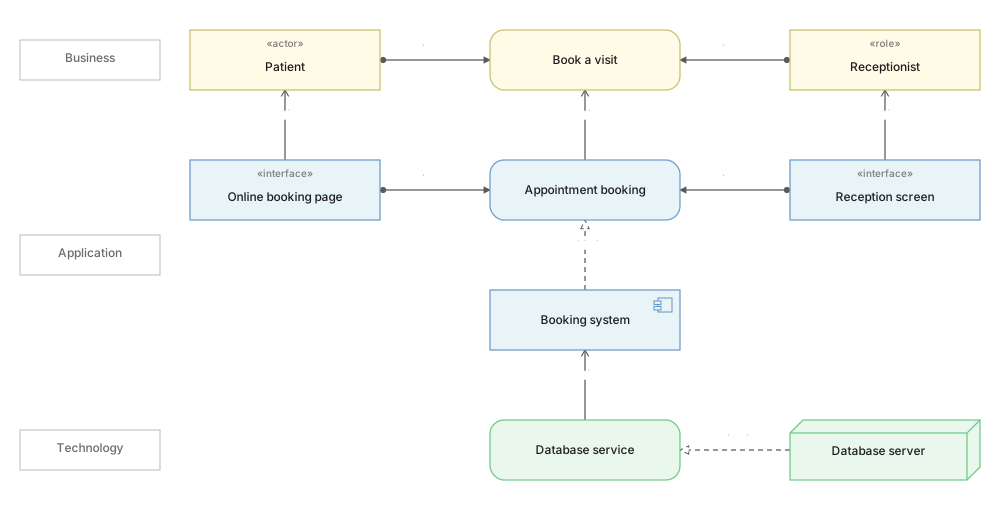
The view now answers the question. Book a visit uses Appointment booking. Booking system realizes that service, Database service serves Booking system, and Database server realizes Database service. If the database server fails, the service stops, and both the patients' web page and the receptionist's screen lose it.
One line is a shortcut. Strictly, Booking system is assigned to behaviour that realizes the service, as the application layer article shows. Drawing the realization straight from the component is a derived relationship. It is allowed, and it keeps this view on its question. When you connect two elements in Archyno's editor, it offers only the relationships the 3.2 table allows for that pair.
05Step 5. Check the view#
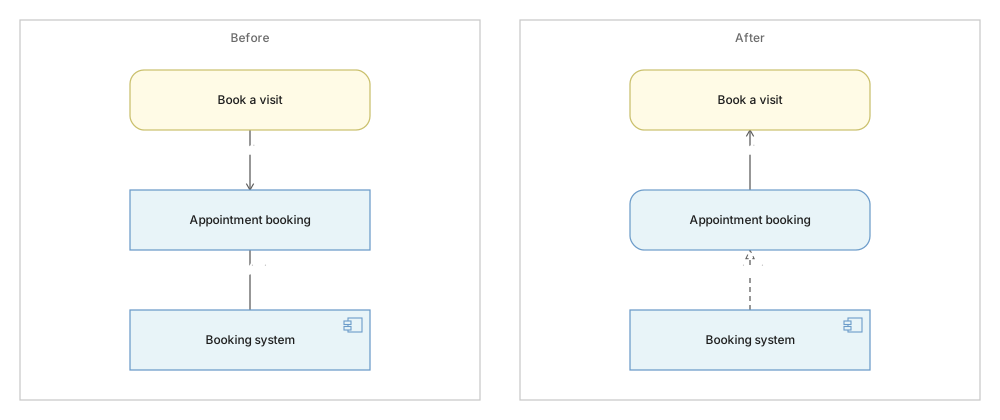
A line the table allows can still say the wrong thing. Both lines on the left below are allowed. Both are still mistakes.
Run five checks before you share a view:
- Every line is allowed. Look up each pair in Appendix B, or let a tool do it. Archyno's editor lists a line the table does not allow in its Issues tab, together with other problems such as an element with no name.
- Every line is as specific as you know. Association only says "related somehow". If you know that Booking system makes the service real, draw realization.
- Every line points the right way. Serving points at the user. The left side says that the business process serves the software, which is the wrong way round.
- Every shape matches its type. A service drawn with square corners reads as a structure element, such as a component.
- Someone else can read it. Give the view to a person who does not know the model and ask them the question. If they need you to explain the view, change the view.
07Common questions#
What is the first step in drawing an ArchiMate diagram?
Write down the question the view must answer and who will read it, then pick a viewpoint that fits. A viewpoint says which element types a view may show. A question such as which systems a business process depends on crosses layers, so the Layered viewpoint fits it.
Where do the layers go on an ArchiMate diagram?
By convention the business layer goes at the top, the application layer in the middle and the technology layer at the bottom. Most lines between layers then point up, because the lower layers serve and realize the ones above. The specification does not require this layout, but most readers expect it.
How many elements should an ArchiMate view have?
The specification sets no limit. As a rough guide, a view that a reader can take in within a minute or two has somewhere between five and twenty elements. If your list is much longer, the view is probably answering two questions, so split it into two views.
How do I check that an ArchiMate relationship is allowed?
Look up the two element types in the relationship table in Appendix B of the ArchiMate 3.2 specification, or use a tool that checks it for you. When you connect two elements, Archyno's editor offers only the relationships the table allows, and its Issues tab lists any line that breaks the table.
In this series
- 01What is ArchiMate
- 02Layers and aspects
- 03Application layer
- 04Relationships
- 05Viewpoints
- 06How to draw ArchiMate
- 07ArchiMate with AI
Related reading
Foundations
Modelling practice
Notation reference
Structure diagrams
Structure diagrams
Modelling practice